
How to Connect Printer via Laptop Ethernet Cable Without Router
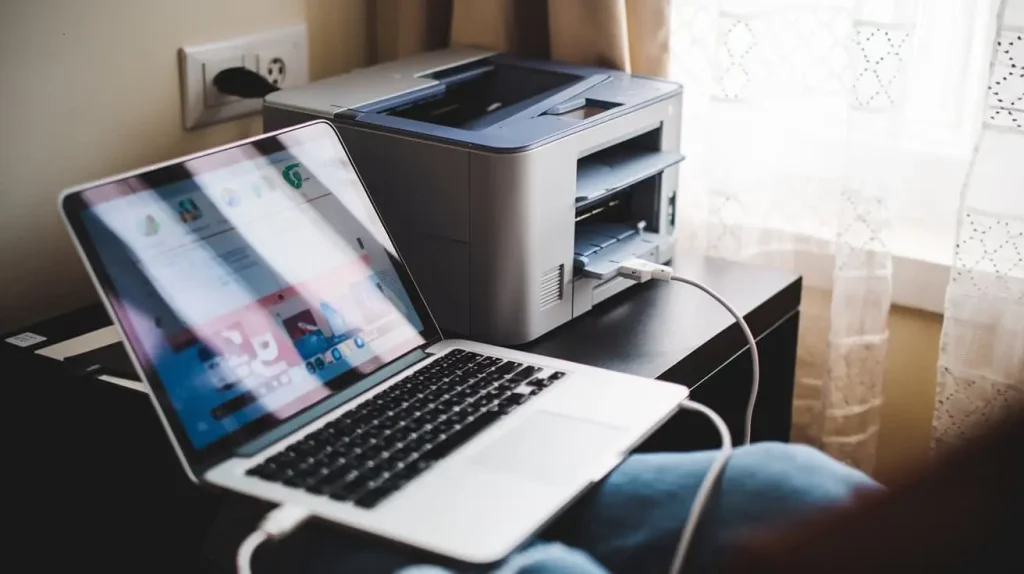
Connect printer via laptop Ethernet cable without a router is a straightforward process that can enhance your printing experience. This guide will walk you through the steps needed to set up your printer efficiently. Whether you’re looking to use an Ethernet connection for its speed and reliability or you just want to avoid the hassle of configuring a Wi-Fi network, this article has you covered. Additionally, we will explore how to connect a printer with a USB cable as a reliable alternative when needed.
Content
Understanding Printer Connectivity Options
Different Ways to Connect a Printer to a Laptop
When it comes to connecting a printer to a laptop, there are several methods available, including:
- Wi-Fi: Wireless connection that offers flexibility but may encounter issues like signal interference.
- USB: Direct connection that is usually straightforward and reliable.
- Ethernet: Wired connection that typically provides faster speeds and more stability than Wi-Fi.
Why Ethernet Instead of USB or Wi-Fi?
Ethernet connections offer several advantages, such as:
| Advantage | Ethernet | USB | Wi-Fi |
| Speed | Faster data transfer | Moderate speed | Variable, subject to interference |
| Reliability | More stable connection | Very reliable, direct connection | Prone to connectivity issues |
| Setup Complexity | Requires more setup | Simple plug-and-play | Requires configuration |
While you can easily connect a printer to a computer with a USB cable, Ethernet may offer a better option for users needing a stable connection for larger jobs or multi-user environments.
What You’ll Need to Connect a Printer via Ethernet Without a Router
Required Hardware for Connecting Printer to Laptop
To connect your printer via an Ethernet cable without using a router, you will need the following hardware:
- Printer with Ethernet Port: Ensure your printer is equipped with an Ethernet port.
- Laptop with Ethernet Port: Check if your laptop has an Ethernet port. If it does not, a USB Ethernet adapter will be necessary.
- Ethernet Cable: Use either a straight-through or crossover Ethernet cable depending on your printer model.
- USB Ethernet Adapter: If your laptop lacks an Ethernet port, this device will allow you to connect the printer.
Does Your Laptop Have an Ethernet Port?
To check if your laptop has an Ethernet port, look for a rectangular port typically located on the side or back of the laptop. If you find one, you can connect the Ethernet cable directly. If not, you will need to use a USB Ethernet adapter. Just like connecting a printer to a computer with a USB cable, this adapter will facilitate the connection.
Step-by-Step Guide: Connecting Printer to Laptop via Ethernet Cable
How to Connect Your Printer to Laptop Using an Ethernet Cable
Follow these steps to set up your printer using an Ethernet cable:
Step 1: Plug in the Ethernet Cable to Your Printer
- Locate the Ethernet port on your printer.
- Plug one end of the Ethernet cable into the printer’s Ethernet port.
Step 2: Connect the Other End to Your Laptop (Or USB Adapter)
- If your laptop has an Ethernet port, plug the other end of the Ethernet cable into your laptop.
- If your laptop does not have an Ethernet port, connect the Ethernet cable to the USB Ethernet adapter and plug that adapter into an available USB port on your laptop.
Step 3: Configure Printer Settings on Your Laptop
1. Windows:
- Go to Settings > Devices > Printers & scanners.
- Click on Add a printer or scanner. Your laptop should automatically detect the printer.
2. macOS:
- Open System Preferences > Printers & Scanners.
- Click the + button to add the printer, and your laptop should find it.
Step 4: Installing Printer Drivers and Software
- If your printer is not automatically detected, visit the manufacturer’s website to download and install the appropriate drivers.
- Follow the installation instructions provided by the manufacturer.
While installing drivers for Ethernet, you can also learn how to connect a printer to a computer with a USB cable as a backup method if you encounter issues with the Ethernet setup.
Alternative Methods to Connect Printer to Laptop
Other Options to Connect Your Printer to Laptop
If you find that connecting via Ethernet is too complex or unsuitable, consider these alternatives:
Connect Printer to Computer with USB Cable
Connecting your printer directly to your laptop using a USB cable is an alternative that many find easier:
- Plug one end of the USB cable into the printer.
- Connect the other end to your laptop.
- Your operating system should automatically detect the printer and install the necessary drivers.
Comparison of Connection Methods
| Connection Method | Advantages | Disadvantages |
| Ethernet | Stable and fast | Requires setup and an Ethernet cable |
| USB | Simple and quick setup | Limited to one computer at a time |
| Wi-Fi | Wireless convenience | Susceptible to signal interference |
If your Ethernet connection isn’t ideal, consider switching to connect a printer to a computer with a USB cable for a quick and easy setup.
Troubleshooting Printer Connections
Common Issues and Fixes When Connecting Printer via Ethernet
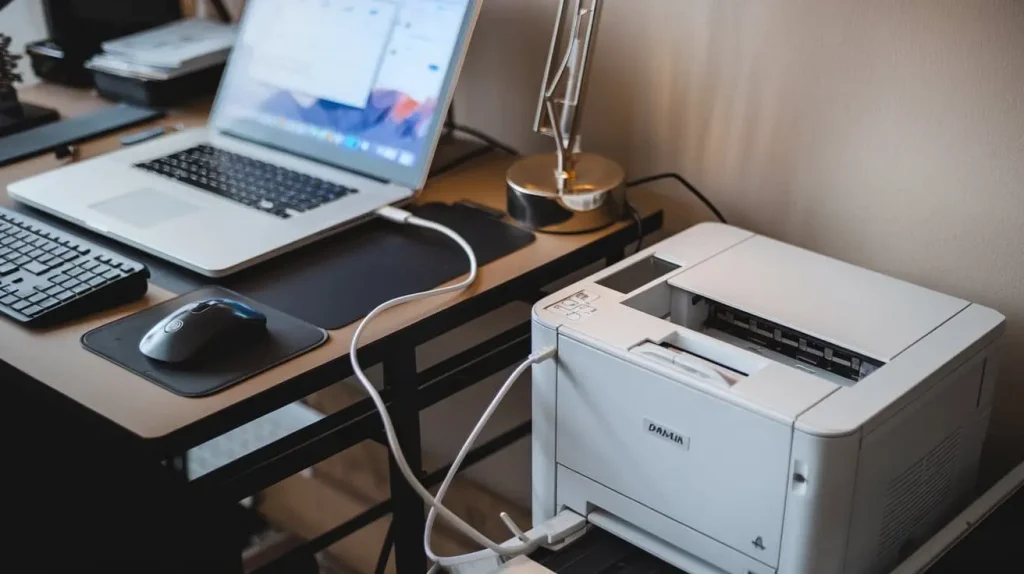
Here are some common issues you might encounter and how to resolve them:
- Printer Not Detected: Ensure the Ethernet cable is securely connected and the printer is powered on.
- Network Printer Issues: Check the printer’s IP address and make sure it is correctly configured in your laptop settings.
- Driver Issues: Reinstall or update the printer drivers from the manufacturer’s website.
Fixing USB Connection Issues
If you switch to a USB cable connection and encounter issues:
- Check Connections: Make sure the USB cable is firmly connected.
- Driver Installation: Confirm that the correct drivers are installed.
- Try Different USB Ports: Sometimes, using a different USB port can resolve the issue.
If you’re having trouble with the Ethernet setup, consider switching to connect a printer to a computer with a USB cable and follow these troubleshooting steps.
Final Thoughts: Choosing the Right Connection for Your Printer
Should You Use Ethernet or USB?
Deciding whether to use Ethernet or USB for connecting your printer depends on your specific needs.
- Ethernet is ideal for office settings or multi-user environments where stability and speed are priorities.
- USB is best for home users or those who prefer a simple setup with minimal configuration.
Making the Most of Your Printer Setup
In summary, connecting a printer via Ethernet can provide a reliable and fast connection, especially if you’re working with larger print jobs or multiple users. Ultimately, while Ethernet offers more stable connections, you can always connect a printer to a computer with a USB cable for ease of use.
Conclusion
In conclusion, there are various methods to connect a printer to your laptop, whether via Ethernet or USB. Each method has its advantages, and the choice depends on your specific circumstances and preferences.
By following the guidelines in this article, you can successfully set up your printer with minimal hassle, whether through a wired connection or a simple USB link. If you have further questions or require additional assistance, feel free to explore more resources or consult your printer’s user manual.