
Boost Performance with External Graphics Processing Unit
Laptops are incredibly convenient, offering portability and flexibility for various tasks, but they often fall short when it comes to powerful graphical performance. Whether you’re gaming, editing videos, or running intensive applications, the internal graphics of most laptops can’t match the performance of desktop graphics cards. This is where the external graphics processing unit (eGPU) comes into play.
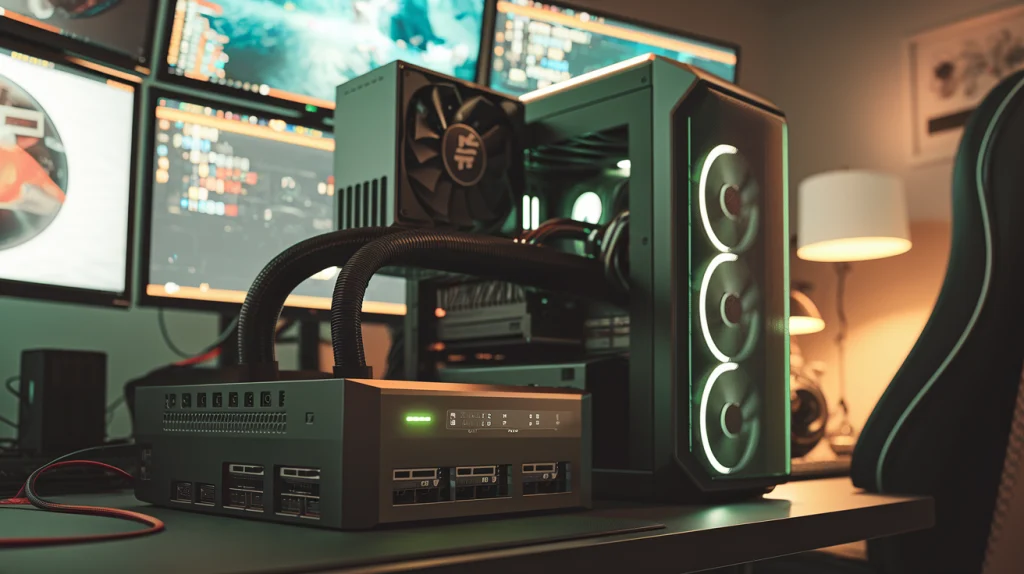
An eGPU is an external device that allows you to connect a desktop-level graphics card to your laptop, significantly boosting its graphics capabilities. In this article, we’ll explore how an external graphics processing unit can enhance your laptop’s performance and provide solutions for common challenges faced by users.
Content
What is an External Graphics Processing Unit (eGPU)?
Definition and Basics of eGPU
An external graphics processing unit (eGPU) is essentially an external device that connects a high-performance graphics card to your laptop to enhance its graphics capabilities. Unlike integrated GPUs that are built into the laptop’s motherboard, an eGPU allows you to bypass the laptop’s built-in graphics processor by using a more powerful external one. This is a game-changing solution for users who need desktop-like graphics on their laptops without having to upgrade the entire machine.
How eGPU Works for Laptops
The external graphics processing unit typically connects to a laptop via high-speed ports such as Thunderbolt 3 or USB-C, which offer fast data transfer rates. Once connected, the eGPU offloads graphics rendering tasks, improving frame rates in games, accelerating video editing, and enhancing the overall graphical experience. The connection between the eGPU and the laptop functions similarly to how an external hard drive connects to a laptop, except it processes graphical data instead of storage.
Why Consider an External Graphics Processing Unit for Your Laptop?
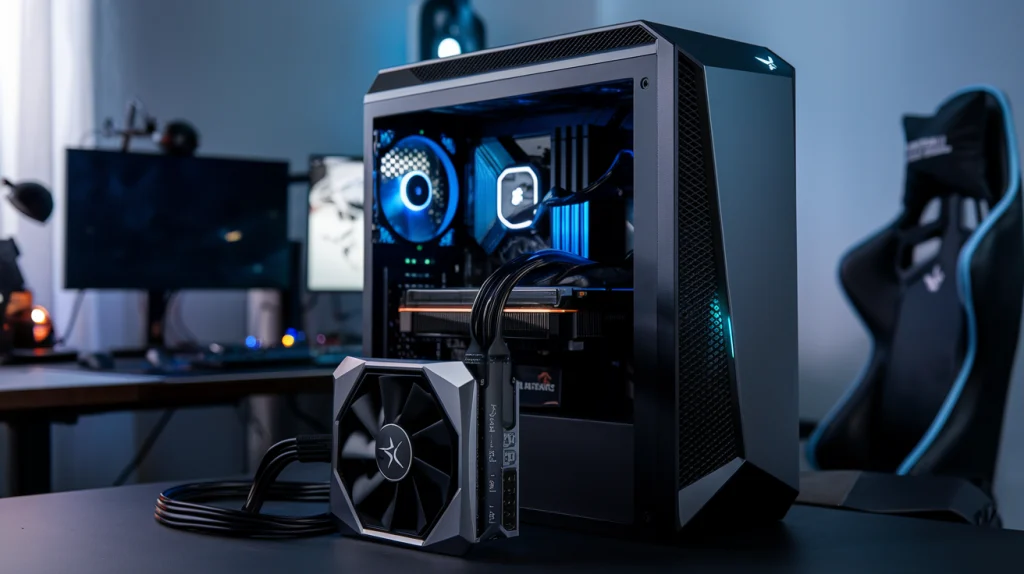
Boosting Gaming Performance
Gamers often face the limitation of integrated GPUs in laptops, which are unable to handle the demanding graphics of modern games. With an external graphics processing unit, your laptop can harness the power of high-end graphics cards such as those from NVIDIA or AMD, delivering smoother gameplay, higher frame rates, and better visual quality. This means you can play the latest AAA titles at higher settings without lag or stuttering.
Improving Video Editing and Rendering Capabilities
Content creators, video editors, and animators who rely on powerful graphics to render complex video files and run heavy editing software can benefit greatly from an eGPU. Software like Adobe Premiere Pro, DaVinci Resolve, and Blender can leverage the power of an external graphics processing unit, significantly speeding up rendering times and improving overall performance in resource-intensive tasks. This is especially beneficial for professionals who need to work on-the-go but don’t want to compromise on performance.
Enhanced Multitasking and Productivity
For professionals working with demanding software like AutoCAD, 3D modeling tools, and simulations, an external graphics processing unit can make a huge difference. With the ability to handle large files and multi-layered designs more efficiently, an eGPU frees up system resources for other tasks, making it easier to multitask without slowdowns. Whether you’re creating complex 3D models or managing data-heavy projects, an eGPU provides the power your laptop needs to handle these tasks smoothly.
Future-Proofing Your Laptop
By adding an external graphics processing unit, you extend the lifespan of your laptop, making it capable of handling future software and games that require more graphical power. Instead of buying a new laptop every few years, an eGPU allows you to upgrade only the external component, which is often more cost-effective than purchasing an entirely new machine. This helps keep your system competitive as software requirements evolve.
Key Advantages of Using an eGPU for Laptops
Improved Graphics Performance
The most obvious advantage of using an external graphics processing unit is the significant boost in graphical performance. Integrated GPUs are limited by the laptop’s CPU and memory, whereas an external GPU uses its dedicated resources, delivering high-quality visuals and faster rendering times. Whether it’s running high-end games or demanding professional software, an eGPU enhances the overall experience.
Upgrading Without Replacing Your Laptop
Instead of investing in a new laptop with a better GPU, an eGPU allows you to use your existing laptop while still benefiting from high-performance graphics. This can save a lot of money and effort, especially if your laptop is still capable of handling other tasks well. With an external graphics processing unit, you get a powerful GPU without having to replace the entire system.
Portability and Convenience
An eGPU offers a balance between portability and performance. For people who need to travel or work in various locations, an external graphics processing unit can be easily packed and set up when needed. It allows users to carry their laptop around for everyday tasks and then dock it to an eGPU for demanding applications when they return home or to the office.
Performance and Cost Considerations
Performance varies depending on the eGPU model you choose, so it’s important to find a balance between price and performance. For users who need heavy graphical power, high-end GPUs can offer excellent performance, but they come at a higher cost. Evaluate your needs and choose an external graphics processing unit that offers the best performance for your budget.
How to Set Up an External Graphics Processing Unit (eGPU) for Your Laptop
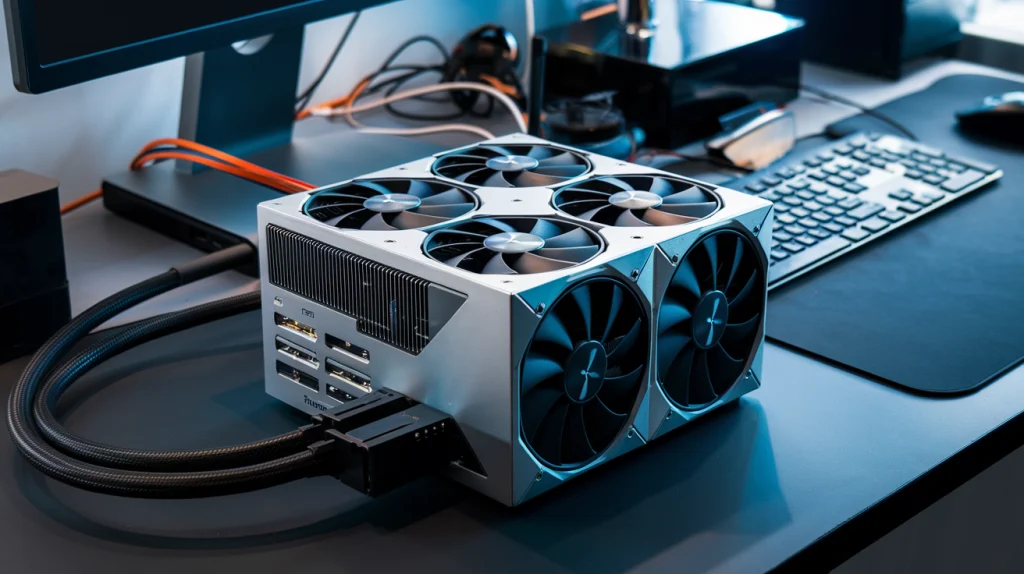
Step-by-Step Guide to Setting Up an eGPU
Setting up an external graphics processing unit is relatively simple if you follow these basic steps:
- Choose Your eGPU Enclosure: Select an eGPU enclosure that is compatible with your laptop and the graphics card you want to use.
- Install the Graphics Card: Insert your chosen NVIDIA or AMD GPU into the eGPU enclosure.
- Connect the eGPU to Your Laptop: Use the Thunderbolt 3 or USB-C cable to connect the eGPU to your laptop.
- Install Necessary Drivers: After connecting the eGPU, install the appropriate drivers for your external graphics processing unit.
- Restart Your Laptop: Restart the system for the eGPU to be recognized and operational.
Software and Drivers for eGPU
Once you’ve connected the external graphics processing unit, it’s important to install the latest drivers for the GPU to ensure optimal performance. Most eGPUs come with a driver disc, but you can also download the latest drivers from the NVIDIA or AMD website for better performance.
Troubleshooting Common Issues with External Graphics Processing Units
Connectivity Problems
Sometimes, eGPUs fail to connect due to issues with cables, ports, or the drivers. If you’re experiencing connectivity issues, make sure the Thunderbolt 3 or USB-C ports are functioning correctly, and try using a different cable. Additionally, check the device manager to ensure your eGPU is properly recognized.
Performance Issues
If your eGPU isn’t performing as expected, check for any background processes that could be consuming system resources. You can also update your drivers or run system diagnostics to ensure everything is running smoothly.
Conclusion
An external graphics processing unit can transform your laptop into a powerful machine capable of handling demanding graphics tasks. Whether you’re a gamer, a content creator, or a professional who needs extra graphical power, an eGPU is a cost-effective and efficient solution. By understanding the benefits, setup process, and best practices for eGPUs, you can significantly boost your laptop’s performance and keep it competitive in a rapidly advancing tech landscape.