
Ultimate Guide to Cycling Laptop Computer Battery: Tips for Optimal Performance
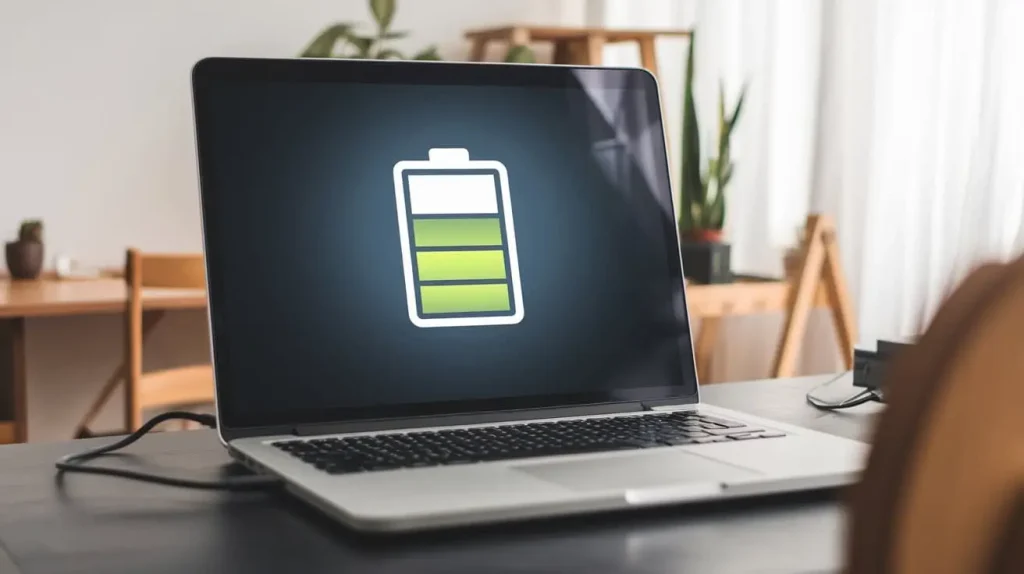
Cycling laptop computer battery is essential for maintaining its longevity and performance. This process involves regularly charging and discharging the battery to keep it in optimal condition. Many users face issues such as their laptop battery not charging or draining too fast, making it crucial to understand how to properly manage and cycle your battery for extended life and better performance. Regular cycling can also help avoid common battery problems and ensure that your laptop remains reliable and efficient.
Content
What is Cycling Laptop Computer Battery?
Cycling your laptop computer battery refers to the practice of charging and discharging the battery periodically to maintain its health. Unlike a full charge and discharge cycle, which involves using the battery until it’s empty and then charging it to full, cycling is about maintaining a balanced charge state. This helps in recalibrating the battery’s power management system and ensuring the battery meter accurately reflects the remaining charge.
Importance of Cycling:
- Improves battery health: Regular cycling can prevent the battery from developing memory issues or capacity loss. Memory effect, though less common in modern lithium-ion batteries, can still occur and affect battery efficiency.
- Enhances battery performance: By cycling the battery, you ensure that the power management system accurately reflects the battery’s charge level, which helps in avoiding sudden shutdowns and extends the battery’s effective lifespan.
How Cycling Improves Your Laptop Battery Life
Cycling your laptop computer battery has several key benefits that directly affect its performance and longevity. When you regularly charge and discharge the battery, it helps maintain the battery’s chemical balance, which can otherwise degrade over time.
- Battery Calibration: One of the primary benefits of cycling is accurate battery calibration. This ensures that your laptop’s operating system correctly reports the remaining battery life, reducing the chances of unexpected shutdowns due to inaccurate readings.
- Prevents Memory Effect: While less common in modern lithium-ion batteries, the memory effect can still impact battery performance. Cycling helps mitigate this issue by keeping the battery’s charge and discharge cycles balanced.
Regular cycling also helps in maintaining the battery’s chemical stability, which contributes to better overall performance and longer battery life.
Common Issues and Solutions
Laptop Battery Not Charging: Troubleshooting Tips
When your laptop battery isn’t charging, it can be frustrating and disruptive. Here are some common issues and solutions to help resolve this problem:
- Faulty Charger: If the charger is not working properly, your battery won’t charge. Try using a different charger to see if the problem persists.
- Loose Connections: Sometimes, the issue might be as simple as a loose connection between the charger and the laptop. Ensure that all connections are secure.
- Battery Issues: In cases where the battery itself is faulty or damaged, it might need to be replaced. Check for any visible signs of damage or swelling in the battery.
Table 1: Common Issues and Solutions
| Issue | Possible Cause | Solution |
| Laptop Battery Not Charging | Faulty charger, loose connections, battery issues | Check charger, ensure connections, consider battery replacement |
| Battery Draining Fast | Background apps, high brightness, battery wear | Reduce brightness, close apps, check battery condition |
| Issue | Possible Cause | Solution |
| Laptop Battery Not Charging | Faulty charger, loose connections, battery issues | Check charger, ensure connections, consider battery replacement |
Why Is My Laptop Battery Draining Fast?
A rapidly draining laptop battery can be caused by several factors:
- Background Applications: Many applications running simultaneously can consume significant amounts of power. Check the task manager to close unnecessary applications.
- High Screen Brightness: Keeping the screen brightness at its maximum can drain the battery quickly. Adjust the brightness settings to a lower level to conserve power.
- Battery Wear: Over time, the battery’s ability to hold a charge diminishes. If your laptop is old, it might be time to replace the battery.
How to Extend Laptop Battery Life
To extend your laptop’s battery life, consider these effective strategies:
- Lower Screen Brightness: Reducing the brightness not only conserves battery power but also reduces strain on your eyes.
- Close Unused Applications: Keeping only essential applications open will help save power and improve overall battery efficiency.
- Enable Power-Saving Mode: Most laptops come with a power-saving mode that optimizes settings for longer battery life. Enable this mode to maximize battery performance.
When to Replace Your Laptop Battery
Laptop Battery Replacement Guide
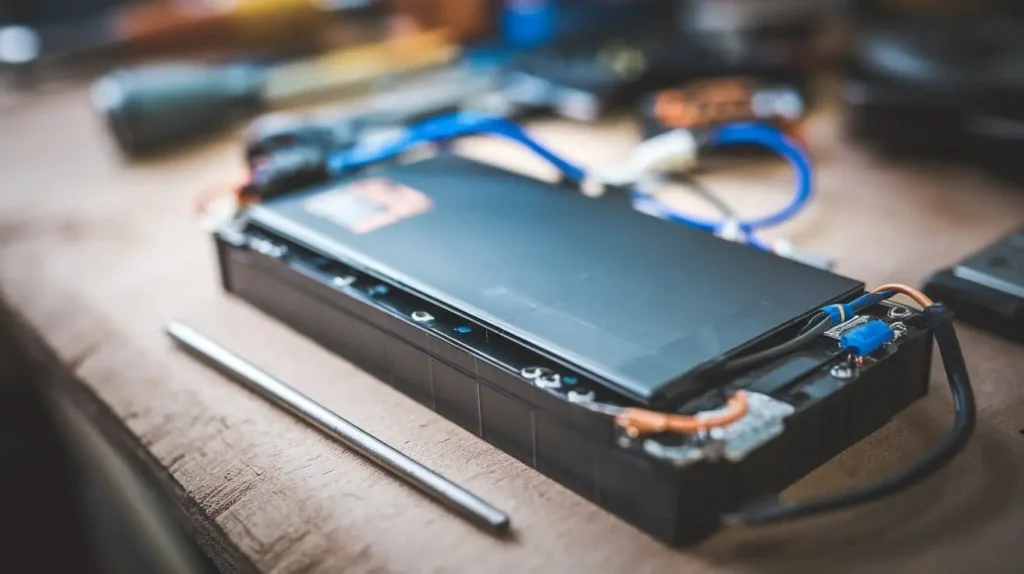
Knowing when to replace your laptop battery is crucial to maintaining optimal performance. Some indicators that a replacement may be necessary include:
- Shortened Battery Life: If you notice that the battery life has significantly decreased despite following best practices for battery care, it might be time for a replacement.
- Frequent Shutdowns: Unexpected shutdowns or power-off incidents can be a sign of a failing battery.
- Swelling Battery: A swollen battery is a serious safety hazard. If you observe any swelling, stop using the battery immediately and seek a replacement.
Choosing a Replacement Battery:
- Compatibility: Ensure that the replacement battery is compatible with your specific laptop model. Using an incompatible battery can cause damage or performance issues.
- Quality: Opt for high-quality batteries from reputable manufacturers. Low-quality batteries may be cheaper but can lead to performance problems and safety risks.
How to Calibrate Your Laptop Battery
Calibrate Laptop Battery: Step-by-Step Instructions
Properly calibrating your laptop battery involves a few simple steps to ensure accurate readings:
- Fully Charge Your Battery: Connect your laptop to the charger and let it charge until it reaches 100%.
- Allow It to Rest: After reaching a full charge, let the laptop rest for a couple of hours to ensure the battery is fully charged.
- Discharge Completely: Use your laptop until the battery is completely drained and the laptop shuts down due to low power.
- Recharge to 100%: Plug in the charger and let the battery charge to 100% without interruption to reset the battery calibration.
Table 2: Battery Calibration Steps
| Step | Description |
| Fully Charge | Charge battery to 100% |
| Allow to Rest | Let battery rest for 2 hours |
| Discharge Completely | Use laptop until battery is empty |
| Recharge to 100% | Fully recharge battery without interruption |
Benefits of Battery Calibration:
- Accurate Battery Readings: Calibration ensures that the battery meter provides accurate readings, preventing unexpected shutdowns.
- Better Performance: Proper calibration helps in maintaining the battery’s efficiency, ensuring reliable performance and longer battery life.
Best Practices for Cycling Your Laptop Battery
To effectively cycle your laptop battery and ensure it remains in good condition:
- Charge Between 20-80%: Avoid letting the battery level drop below 20% or charge it above 80% frequently. This helps in maintaining battery health and prevents overcharging.
- Regular Cycling: Aim to cycle your battery every 1-3 months. This frequency helps in keeping the battery’s calibration and performance in check.
- Avoid Extreme Temperatures: High or low temperatures can affect battery performance. Keep your laptop in a moderate environment to prevent overheating or freezing.
Conclusion
In summary, cycling your laptop computer battery is a key practice for maintaining its health and performance. By understanding the benefits of regular cycling, addressing common issues, and following best practices, you can ensure your laptop battery remains efficient and reliable. Proper battery management not only extends the life of your battery but also enhances your overall laptop experience.