
Dell Graphics Card Options Boost Graphics Performance
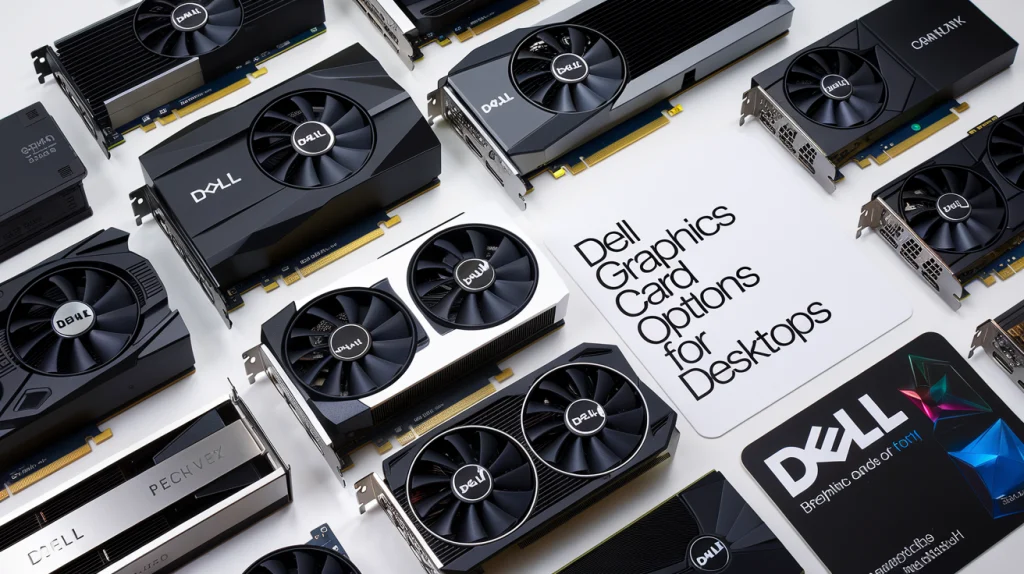
When it comes to enhancing your computer’s graphics performance, one of the most impactful upgrades you can make is choosing the right graphics card. Whether you’re working with a Dell laptop or desktop, selecting the best Dell graphics card option tailored to your needs can make a world of difference in gaming, design, video editing, and more. In this article, we’ll explore the various Dell graphics card options for both laptops and desktops and help you understand how to make the right choice for your performance goals.
Content
Graphics Card Options: Enhance Portability and Power
Choosing the right graphics card for your Dell laptop is crucial for getting the most out of your device, especially when you’re on the go. Whether you’re a gamer, designer, or casual user, the right graphics solution can impact your experience significantly.
Types of Dell Graphics Cards for Laptops
Dell laptops come with two main types of graphics cards: integrated and dedicated.
- Integrated Graphics: These are built directly into the processor and share system resources like memory. Integrated graphics are energy-efficient and suitable for light tasks such as browsing the web, watching videos, and running less demanding applications.
- Dedicated Graphics: These cards are standalone units with their own memory (VRAM) and are more powerful. They’re ideal for users who need extra graphical processing power, like gamers or professionals working with 3D design software.
Graphics Card Options for Gaming Laptops
For serious gamers, a dedicated graphics card is a must. Dell’s gaming laptops, such as the Alienware series, offer high-end graphics cards like the NVIDIA GeForce RTX 30 Series and AMD Radeon RX models. These cards provide stunning visuals and high frame rates, ensuring smooth gameplay even for the most demanding titles.
Dell Graphics Card for Work and Productivity
If you’re using your laptop for professional tasks like video editing, CAD, or graphic design, you’ll want a more powerful and specialized graphics card. The NVIDIA Quadro series, often found in Dell’s Precision Workstations, is designed for professionals who need superior rendering power and precision for their creative projects.
How Dell Graphics Cards Impact Battery Life
Laptops with dedicated graphics cards tend to consume more power and generate more heat than those with integrated solutions. It’s essential to balance power and performance, especially if you’re concerned about battery life. Look for energy-efficient models or laptops with advanced cooling systems to keep your device running smoothly.
Dell Graphics Card for Desktops Maximum Performance
While laptops are great for portability, desktops offer a different level of customization and performance. When it comes to Dell desktops, selecting the right graphics card can significantly enhance everything from gaming to professional creative work.
Why You Need a Dedicated Graphics Card
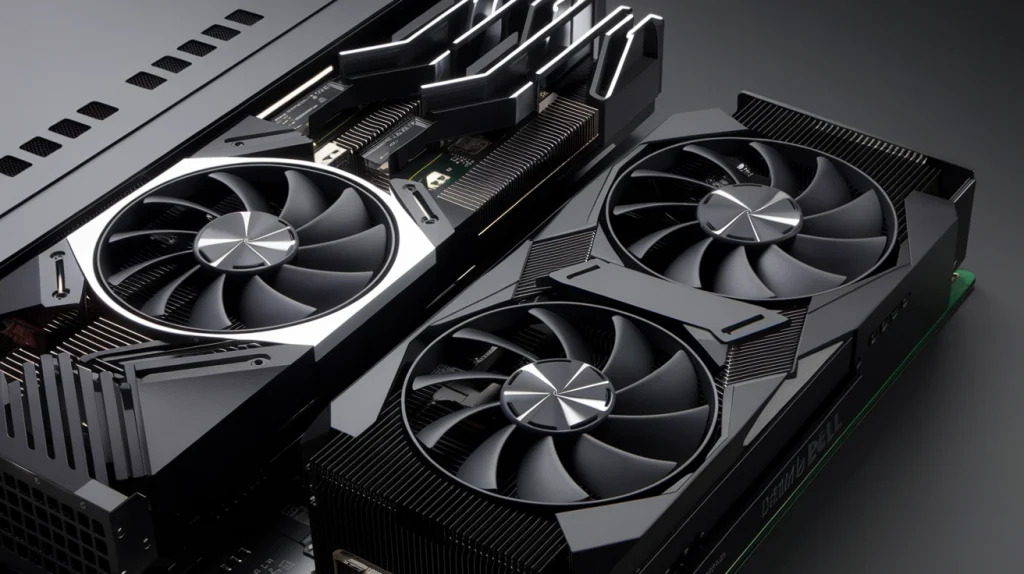
Desktops typically come with more space, making it easier to house powerful dedicated graphics cards. A dedicated GPU ensures smoother performance, whether you’re gaming, editing videos, or working on complex graphical tasks. With options ranging from budget-friendly models to high-end powerhouses, you can pick the right card based on your needs.
Top Dell Graphics Card Gaming Desktops
For those who prioritize gaming, Dell’s G Series or Alienware desktops feature graphics cards such as the NVIDIA GeForce RTX 40 Series or AMD Radeon RX 6000 Series. These GPUs deliver exceptional graphical performance, ray tracing capabilities, and ultra-fast frame rates, ensuring a next-level gaming experience.
For professional workstations, the NVIDIA Quadro RTX series is an excellent choice. These graphics cards are designed for industries like architecture, animation, and engineering, providing high-end performance for 3D rendering, simulations, and other graphics-intensive tasks.
Choosing the Right Graphics Card
If you need multiple displays for productivity, choosing a graphics card with multi-monitor support is essential. Many Dell desktops, particularly in the XPS and Alienware ranges, come with powerful graphics options that support up to four or more monitors simultaneously, perfect for video editing, data analysis, or any multi-tasking environment.
How to Find a Free Dell Graphics Card for Laptop or Desktop
While it’s unlikely you’ll find a free Dell graphics card outright, there are ways to get great deals or promotions that may include a graphics card as part of a system bundle or upgrade.
Free Dell Graphics Card Options
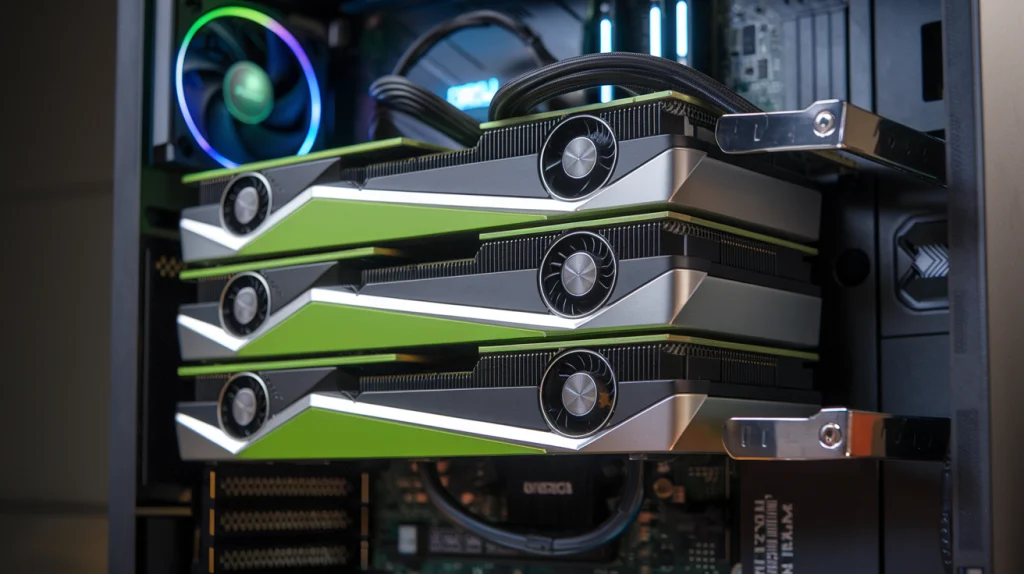
Dell occasionally offers promotions where you can get a free upgrade or discounted graphics card as part of a bundle when purchasing a new laptop or desktop. These promotions can be found on Dell’s official website or through authorized retailers.
Upgrades might be available through Dell’s warranty programs or rebates. If your system is under warranty, it’s worth inquiring with Dell about the possibility of a free graphics card replacement if your existing one is faulty. Additionally, some retailers may offer graphics card bundles or incentives for purchasing a complete Dell system.
Check Dell’s Official Warranty and Support
For users experiencing issues with their current graphics card, Dell’s customer support can help facilitate replacements under warranty or offer repair services. Ensure you contact Dell directly for any potential free upgrades related to existing issues.
How to Upgrade Your Dell Graphics Card for Enhanced Performance
Upgrading your Dell graphics card can drastically improve performance, but it’s important to approach it carefully.
Step-by-Step Guide to Upgrading Graphics Card
Upgrading a desktop graphics card is a straightforward process. First, turn off your system and unplug all cables. Open the desktop case, locate the old graphics card, and gently remove it. Insert the new graphics card into the PCIe slot, secure it, and reconnect any power cables. Finally, install the necessary drivers and software, and restart the system.
Upgrading Laptop Graphics Cards
Upgrading the graphics card in a laptop is usually more complicated. Many laptops, especially those with integrated graphics, don’t allow for upgrades. However, some high-end Dell models with dedicated graphics may allow for replacement or upgrade. Be sure to consult your laptop’s manual or Dell support to check upgrade options.
Tips for Graphics Card Upgrade Experience
Ensure your system is compatible with the new card before making the purchase. You should also check the power requirements and make sure your power supply can handle the extra load (for desktops). Additionally, always download the latest drivers for your new graphics card to avoid compatibility issues.
Conclusion
Selecting the right Dell graphics card option is crucial for achieving optimal performance, whether you’re gaming, working on creative projects, or handling professional tasks. From gaming laptops with powerful NVIDIA GeForce cards to workstations with specialized NVIDIA Quadro GPUs, Dell offers a wide range of options to suit different needs. By considering factors like VRAM, compatibility, and your specific performance requirements, you can ensure that you choose the best Dell graphics card for your system.