
Top Graphics Card External Enclosure for Optimal Performance
In today’s digital landscape, laptops often struggle to keep up with the demanding graphics needs of gamers, designers, and other professionals. This has led to an increasing interest in graphics card external enclosures, which allow users to enhance their laptop’s graphics capabilities without the need for a complete system upgrade. These external GPU solutions provide the power needed for high-performance tasks like gaming, video editing, and 3D rendering, all while maintaining the portability that laptop users value. In this article, we will explore what graphics card external enclosures are, their benefits, and some top recommendations to optimize your laptop’s performance.
Content
Understanding Graphics Card External Enclosures
What is a Graphics Card External Enclosure?
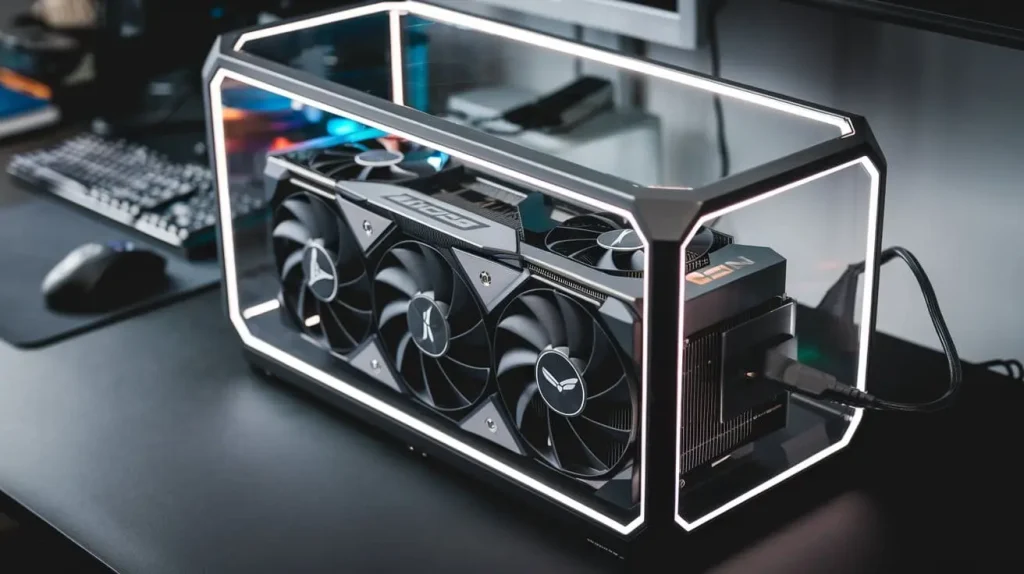
A graphics card external enclosure is a hardware device that houses a dedicated graphics card, connecting to a laptop through high-speed interfaces such as Thunderbolt or USB-C. This technology allows users to leverage the processing power of a desktop-class GPU while using a laptop, thus significantly enhancing graphics performance.
How Does an External GPU Enclosure Work?
External GPU enclosures work by connecting to a laptop via a compatible port, usually Thunderbolt 3 or USB-C. They draw power from an external power supply and transmit data between the laptop and the GPU via a high-speed connection. This setup allows the laptop to utilize the external graphics card for rendering graphics-intensive applications, making it suitable for gaming, graphic design, and more.
Benefits of Using a Graphics Card External Enclosure
Enhanced Performance for Gaming and Design
The most significant advantage of using a graphics card external enclosure is the substantial boost in performance it provides. Gamers can experience higher frame rates and better graphics quality, while designers benefit from faster rendering times and improved responsiveness in graphic-intensive applications.
Portability and Flexibility
Unlike upgrading a laptop’s internal GPU, which is often not possible due to design limitations, external GPU enclosures offer a flexible solution. Users can easily transport their enclosures to different locations, making it convenient for both work and play.
Cost-Effectiveness
Investing in a graphics card external enclosure can be more cost-effective than purchasing a new high-performance laptop. Users can upgrade their graphics capabilities without the significant expense of replacing their entire system.
Top Graphics Card External Enclosures for Optimal Performance
Criteria for Selection
When selecting a graphics card external enclosure, consider the following factors:
- Compatibility: Ensure the enclosure is compatible with your laptop’s ports.
- Cooling Solutions: Look for enclosures with adequate cooling to maintain optimal performance.
- Size and Design: Choose an enclosure that fits your workspace and travel needs.
Recommended Products
| Product | Key Features | Price Range |
| Razer Core X | – Supports full-sized GPUs – Thunderbolt 3 connectivity – 650W power supply | $299 – $399 |
| Akitio Node | – Compatible with PCIe GPUs – Large internal space – Good cooling system | $249 – $299 |
| Sonnet eGFX Breakaway Box | – Supports dual GPUs – 550W power supply – Compact design | $199 – $279 |
| Gigabyte AORUS Gaming Box | – Compact and portable – Built-in graphics card options – Stylish design | $399 – $499 |
Setting Up Your Graphics Card External Enclosure
Installation Steps
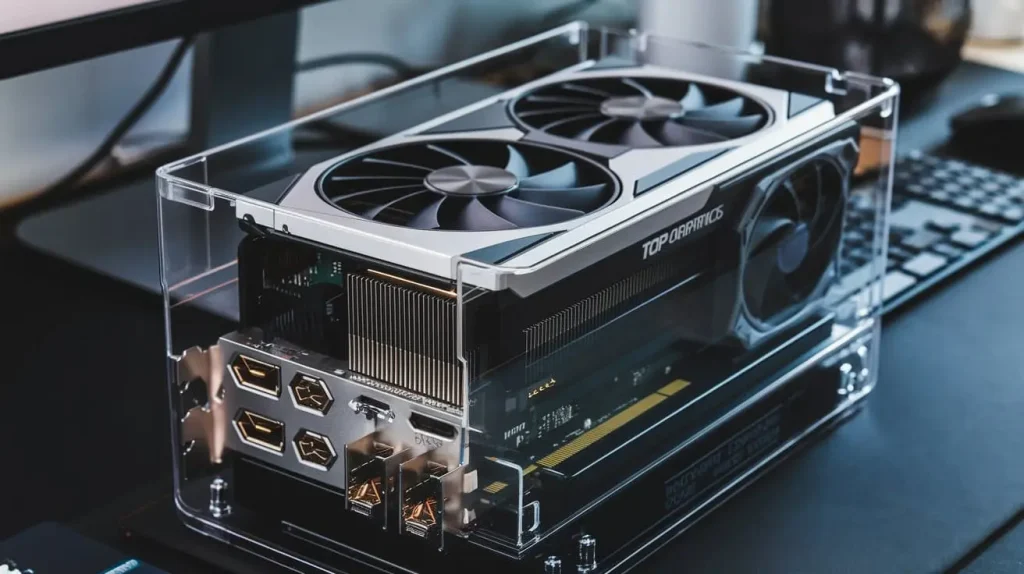
- Connect the Enclosure: Start by plugging the external GPU enclosure into your laptop using a Thunderbolt or USB-C cable.
- Install the Graphics Card: Open the enclosure and securely install your dedicated graphics card.
- Power On the Enclosure: Connect the enclosure to a power source and turn it on.
- Install Drivers: Download and install the latest drivers for your graphics card to ensure compatibility and optimal performance.
Configuration and Optimization
After installation, configure your settings to maximize performance. Access your GPU control panel (NVIDIA Control Panel or AMD Radeon Settings) to adjust graphics settings for your games or applications.
Troubleshooting Common Issues
Connectivity Problems
If your laptop does not recognize the external GPU, ensure the connections are secure and that the necessary drivers are installed. Check for compatibility with your laptop model.
Performance Issues
For issues such as lag or stuttering, verify that your external enclosure has adequate power supply and cooling. Ensure that you have the latest drivers and that your laptop is not throttling performance due to power-saving settings.
Driver and Software Conflicts
Sometimes, software conflicts may arise, especially with older drivers. Regularly update your graphics drivers and check for any system updates to resolve these conflicts.
Future of External Graphics Solutions
Trends in External Graphics Card Technology
As technology evolves, external GPU enclosures are becoming more efficient and easier to use. Upcoming trends include increased support for higher bandwidth connections, more compact designs, and improved cooling solutions to handle more powerful GPUs.
The Growing Need for Graphics Card External Enclosures
With the increasing demand for portable high-performance computing, the need for graphics card external enclosures is set to rise. This technology allows users to enhance their laptop capabilities without sacrificing portability.
Conclusion
In summary, graphics card external enclosures are an excellent solution for laptop users seeking enhanced graphics performance for gaming, design, and more. By investing in a suitable external GPU enclosure, users can significantly boost their laptop’s capabilities while enjoying the convenience of portability. Advertise with us at the center of innovation and reach the right audience. As technology advances, these enclosures will continue to provide essential support for graphics-intensive applications, making them a valuable addition to any laptop setup.