
How to Turn Off Graphics Card RGB for a Sleek Setup
As RGB lighting becomes increasingly popular in gaming and PC setups, many users seek a cleaner, more minimalist aesthetic. If you’re wondering how to turn off graphics card RGB lighting to achieve this sleek look, you’ve come to the right place. This article will guide you through various methods to disable RGB lighting on different graphics card brands, helping you maintain a tidy and focused workspace or gaming environment.
Content
Understanding Graphics Card RGB Lighting
What is Graphics Card RGB?
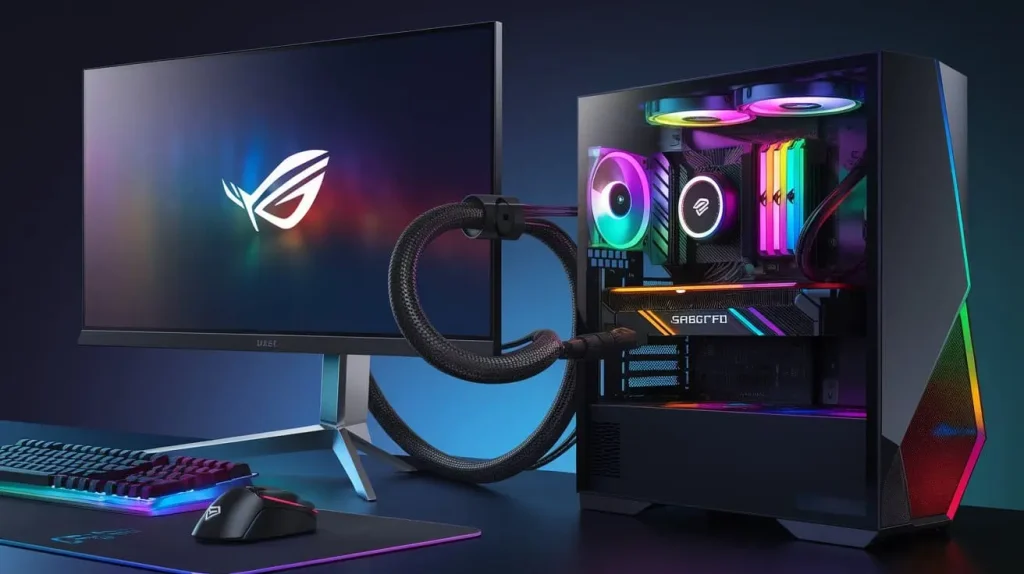
RGB lighting in graphics cards is a feature that allows users to customize the color and effects of the lights on their hardware. This technology adds a visual flair to gaming setups, enhancing the overall experience with vibrant colors and animations. However, not everyone prefers this flashy look, and many users find it distracting.
Why Turn Off Graphics Card RGB?
There are several reasons why you might want to turn off your graphics card’s RGB lighting:
- Aesthetic Preferences: A sleek, minimalist look is often favored by those who want a clean and organized setup.
- Distractions: Bright lights can be distracting during gameplay or when working for extended periods.
- Power Consumption: Disabling RGB can slightly reduce power consumption, which is an important consideration for energy-efficient builds.
General Methods to Turn Off Graphics Card RGB
Using Manufacturer-Specific Software
Most graphics card manufacturers provide software tools that allow users to control RGB lighting easily. Below are the popular software options for major brands:
| Brand | Software | Description |
|---|---|---|
| NVIDIA | GeForce Experience | Allows customization of RGB and other settings. |
| MSI | MSI Afterburner | Provides overclocking features and RGB control. |
| ASUS | ASUS Aura | Comprehensive lighting control for ASUS devices. |
| Gigabyte | Gigabyte RGB Fusion | Manages RGB settings for Gigabyte products. |
| Corsair | iCUE | Controls RGB across various Corsair devices. |
BIOS Settings for RGB Control
For those who prefer a more manual approach, accessing the BIOS settings can provide options to disable RGB lighting directly. Here’s how to do it:
- Restart your computer and enter the BIOS/UEFI setup (usually by pressing F2, Delete, or another key during startup).
- Navigate to the Hardware Monitor or Peripherals section (names may vary).
- Look for options related to RGB lighting or LED settings.
- Disable the RGB settings.
- Save changes and exit the BIOS.
Turning Off RGB for Specific Brands
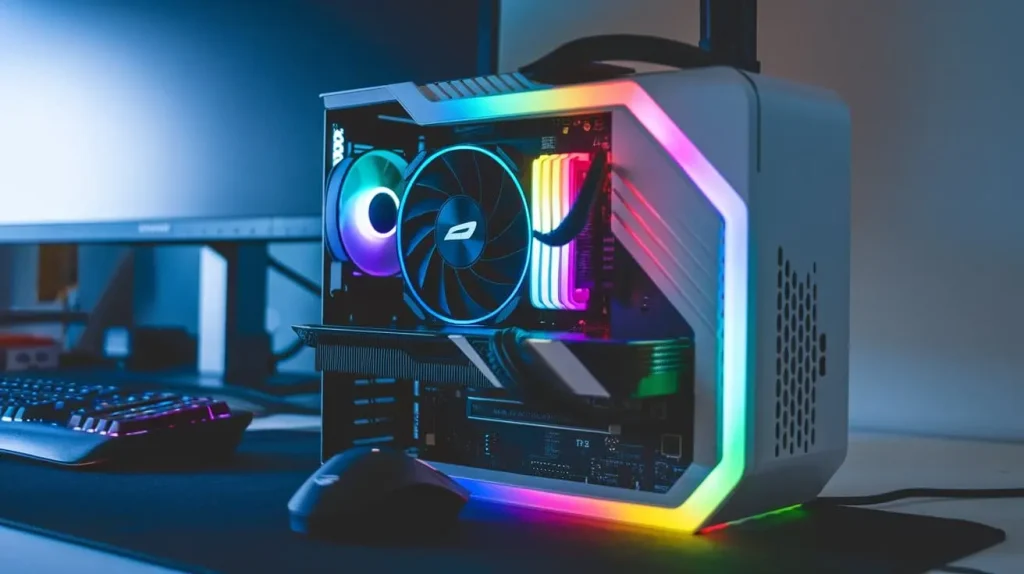
How to Turn Off Graphics Card RGB on Lenovo
If you own a Lenovo laptop or desktop, you can turn off RGB lighting using the Lenovo Vantage software. Here’s how:
- Download and install Lenovo Vantage from the Microsoft Store.
- Open the application and navigate to the Device section.
- Select Lighting options.
- Turn off RGB lighting by toggling the switch to the off position.
How to Turn Off GPU Light Nvidia
For NVIDIA graphics cards, you can use the NVIDIA LED Visualizer to manage RGB settings. Follow these steps:
- Right-click on your desktop and open NVIDIA Control Panel.
- Navigate to the 3D Settings section.
- Look for the LED Visualizer option.
- Select the option to Turn Off the RGB lighting.
- Apply the changes to see the effect.
How to Turn Off Gigabyte GPU RGB
If you have a Gigabyte graphics card, you can easily disable the RGB lighting using the RGB Fusion software:
- Download and install Gigabyte RGB Fusion from the official website.
- Launch the application and find your graphics card listed under the devices.
- Locate the Lighting section within the software.
- Select Turn Off for RGB lighting or set it to a static color if preferred.
- Save the changes.
Troubleshooting Common Issues
RGB Not Turning Off?
If you find that the RGB lights are still on after attempting to disable them, consider these common issues:
- Software Conflicts: Ensure that no other RGB control software is running that may override your settings.
- Firmware Updates: Check for updates for your graphics card and software, as newer versions may resolve issues.
Software Conflicts and How to Resolve Them
If you’re using multiple software applications to control RGB lighting (for example, Gigabyte RGB Fusion and MSI Afterburner), conflicts can occur. Here’s how to resolve them:
- Uninstall Unused Software: Remove any unnecessary RGB software to avoid conflicts.
- Set Priority: Choose one software as the primary RGB control and disable RGB features in others.
- Check Compatibility: Ensure that all installed software is compatible with your hardware.
Enhancing Your Setup Beyond RGB
Exploring Alternative Lighting Options
If you’re looking for a sleek setup without RGB lights, consider alternative lighting solutions like static LED strips or ambient lighting. These options provide a subtle glow without the distractions of moving lights.
Tips for a Minimalist PC Setup
Achieving a clean aesthetic involves more than just turning off RGB. Here are some tips:
- Cable Management: Use cable sleeves or ties to organize cables and reduce clutter.
- Hardware Selection: Choose components that align with your aesthetic goals, such as cases without flashy designs.
Conclusion
Turning off your graphics card’s RGB lighting can significantly enhance the aesthetic of your setup, allowing for a more streamlined and professional appearance. By following the steps outlined in this guide, you can easily manage your RGB settings and create a workspace or gaming environment that reflects your personal style.